Guide
Budget planner spreadsheet for Excel
Excel workbooks that turn a list of purchases into one monthly Dashboard: what is left to spend, where the money went and how you did against your plan.
Updated
Some are free. The rest are 2 credits each: buy one for $2, or get 5 credits for $5. Yours to keep.
Budget spreadsheets to start with
Four workbooks that cover the common ways people budget. Each one opens with a Start Here tab and includes sample data so you can see it working before you add your own.
Who this is for
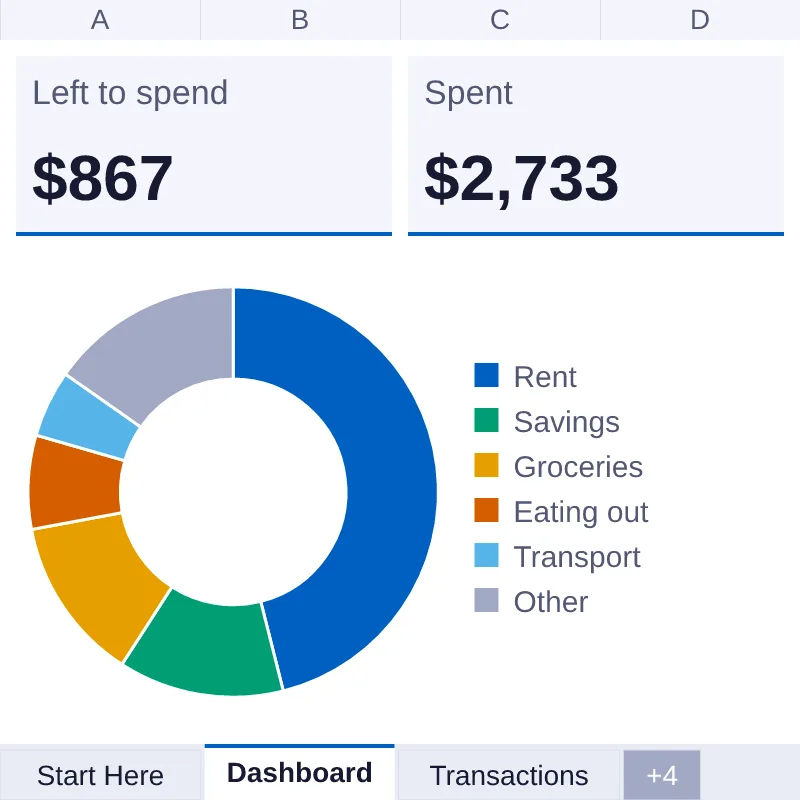
- One main income and a lot of small spending.You know roughly what comes in, but not what is left this month. The Single Income Budget Dashboard keeps income, spending, bills and savings funds in one workbook.
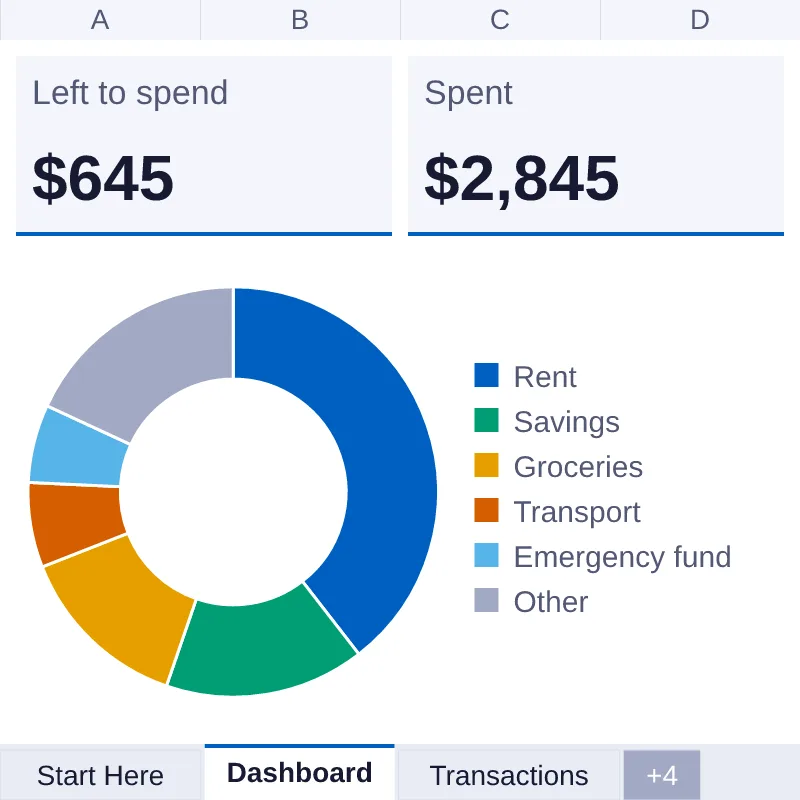
- Anyone who wants every dollar assigned.The Zero-Based Budget Dashboard uses the same tabs as the Single Income Budget Dashboard. Set each category until your planned spending equals your income, then watch the Dashboard as the month unfolds.
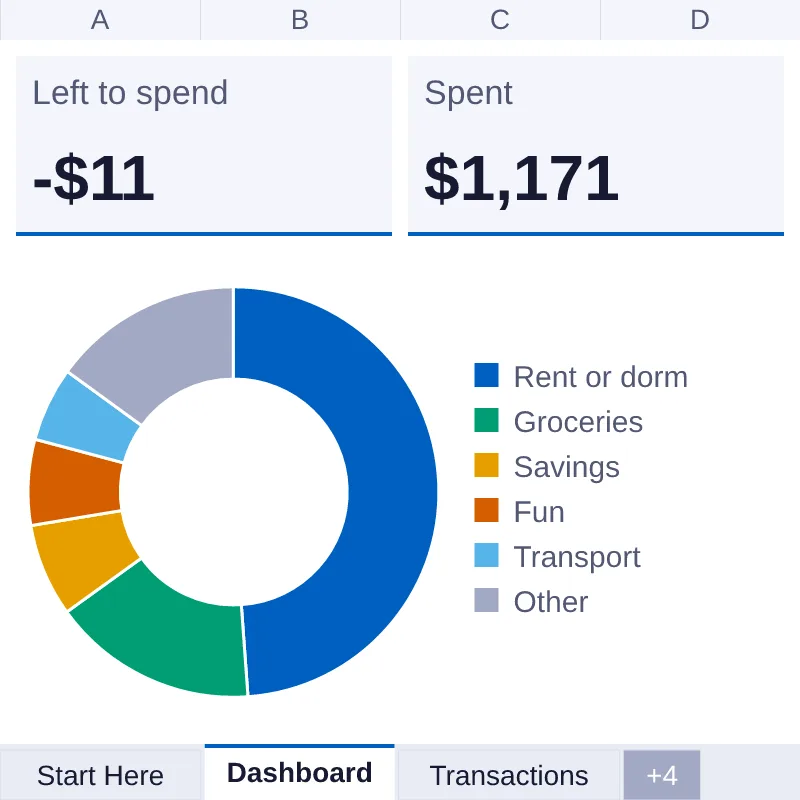
- A student or someone with a first job.The Student Budget Dashboard is set up for a smaller income, with categories such as rent or dorm, books and supplies, and eating out, so you start from a realistic list rather than a blank page.
- A saver with a specific target.The Savings Goal Tracker follows up to eight goals, each with a target amount and date, and tells you in words whether each one is On track, Behind or Done.
How to use it
Open Start Here
Every workbook opens on a Start Here tab. It lists what each tab is for, gives four setup steps and explains the colour key: you type in the light-blue cells, and everything else is calculated.
Set your income and categories
On Settings, choose your currency symbol, start month and year. Then rename the categories to match your life and type a monthly amount for each. Every dropdown, table and chart follows what you enter here.
Clear the sample rows, or use the blank copy
Each download includes two Excel files (XLSX), one filled with sample data so you can see it working and a blank copy with the same formulas, plus a CSV copy of the sample log. Use the blank one, or clear the sample rows on Transactions and keep the file you opened.
Log what you spend
On Transactions, add one row per purchase or payment and pick its category, type and account from the dropdowns. Add your recurring bills with a due day on Bills. Do this a few times a week and it takes minutes, not an evening.
Read the Dashboard
Pick a month at the top right of the Dashboard and every tile and chart follows. Check Left to spend first, then the plan against actual chart to see which category ran over.
Adjust once a month
At month end, compare plan with actual, move the category amounts that were wrong and carry on. A budget that you correct every month will fit you better than one you set once and ignore.
A look inside the Zero-Based Budget Dashboard
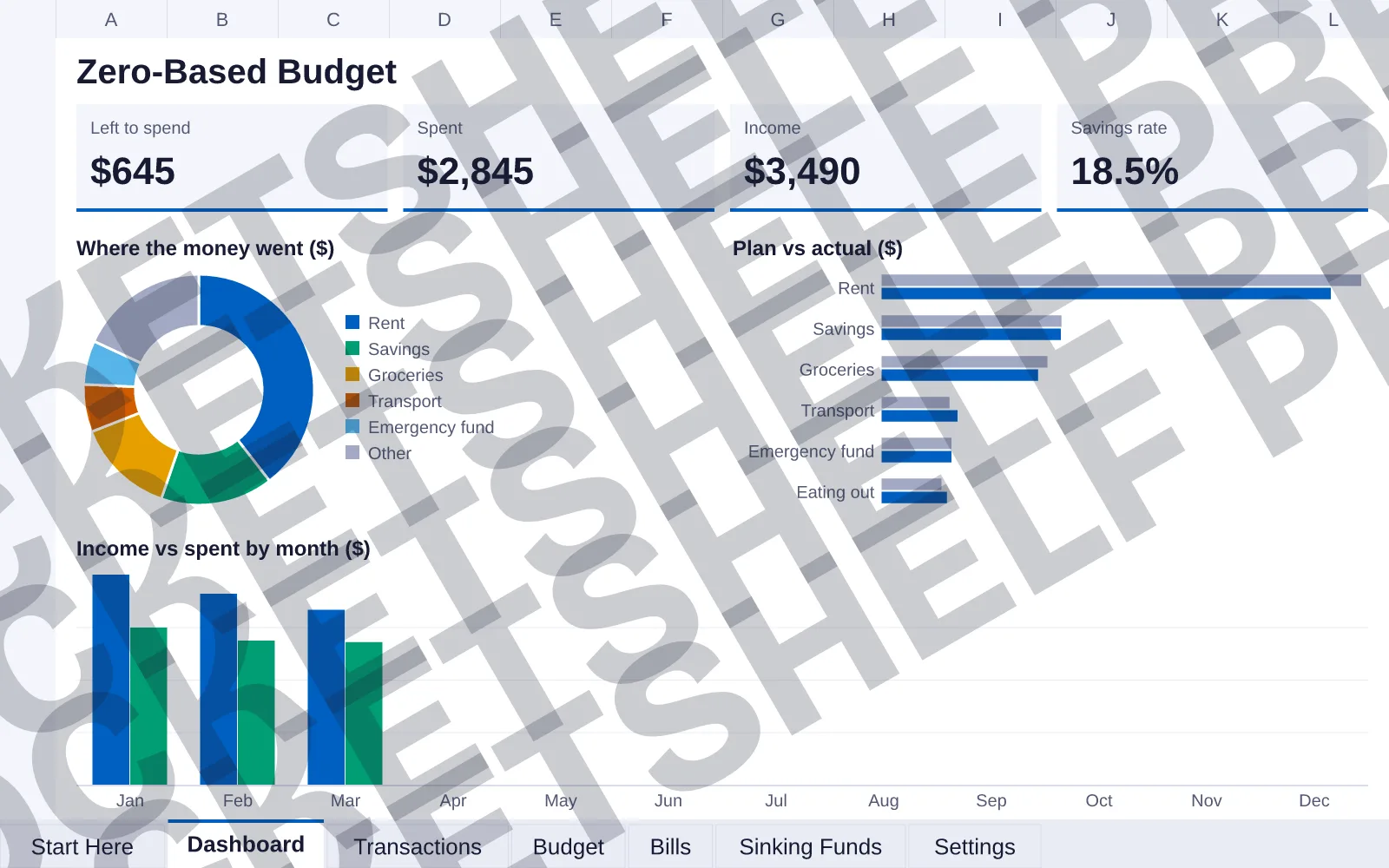
These are the real preview pages of the workbook, shown with sample data for one person. The watermark is only on the previews, not on the file you download.
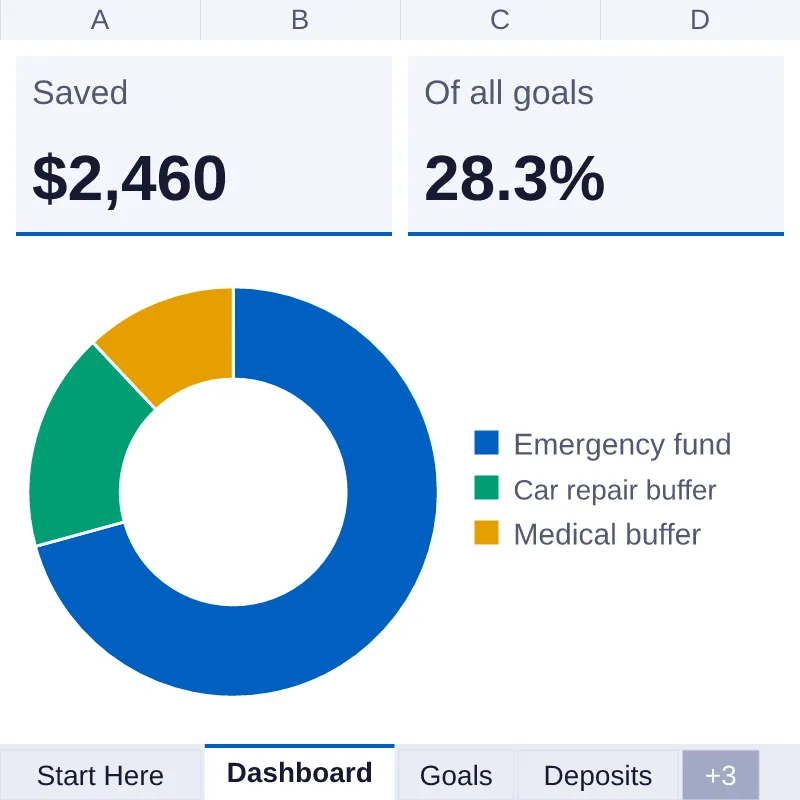
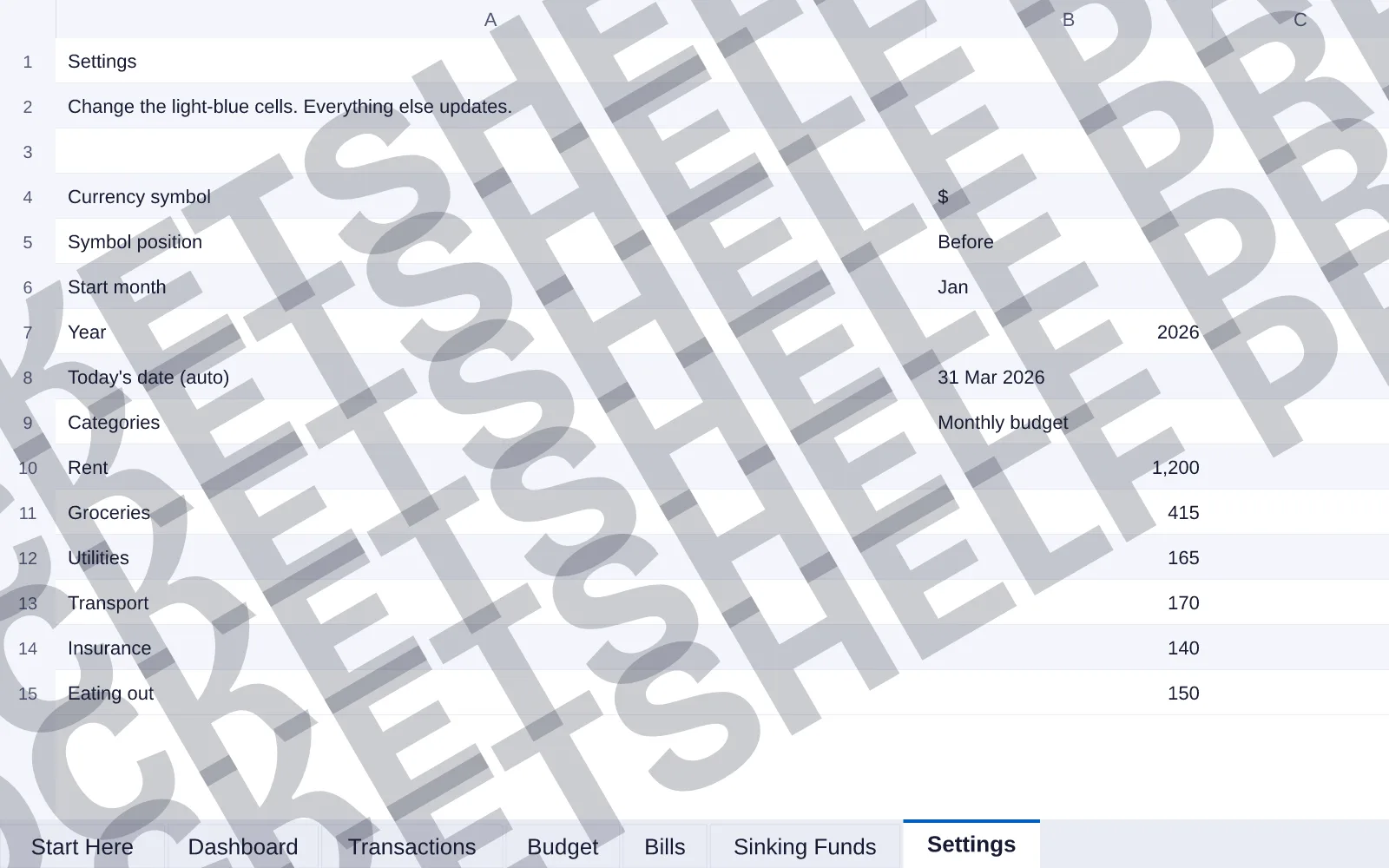
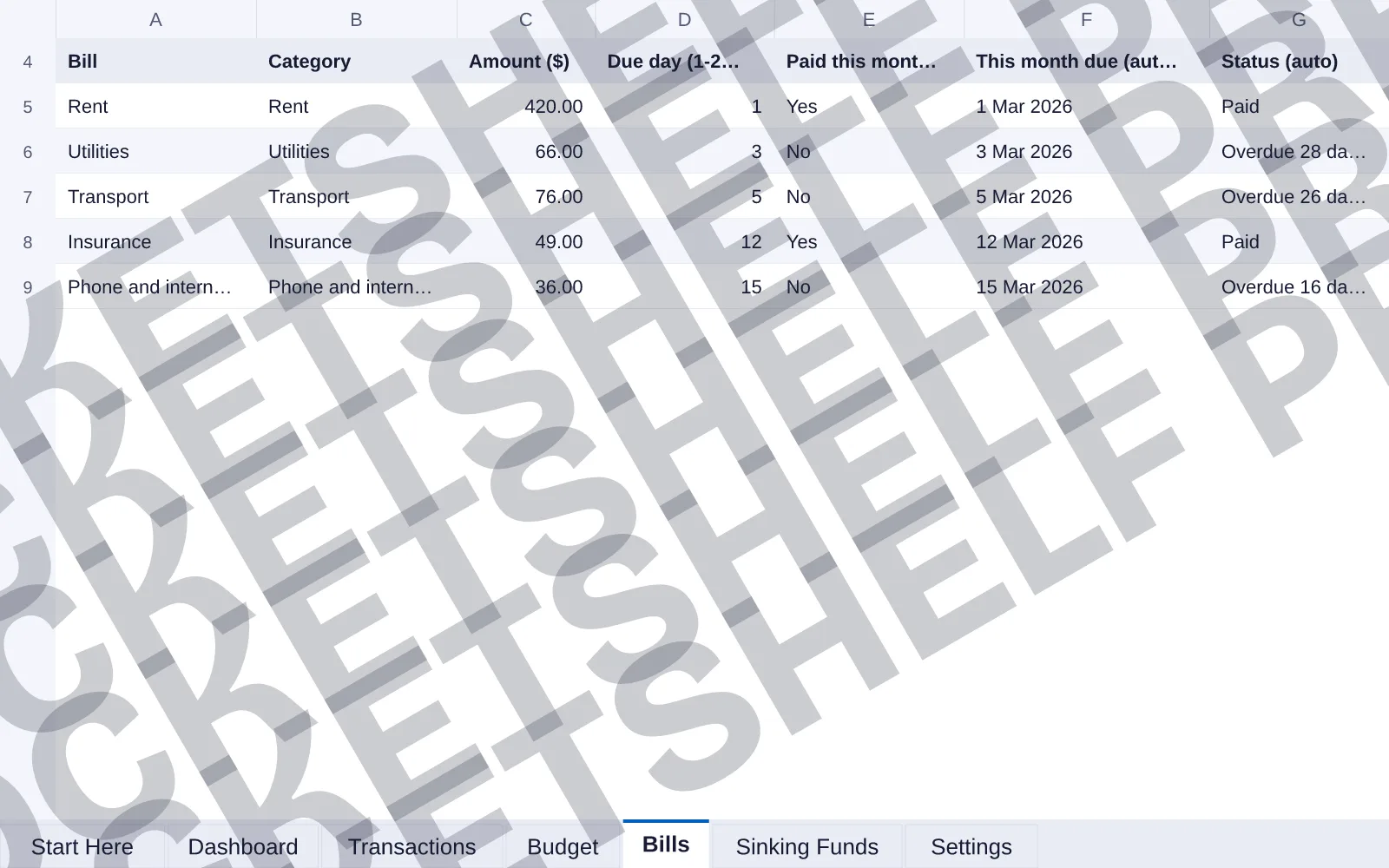
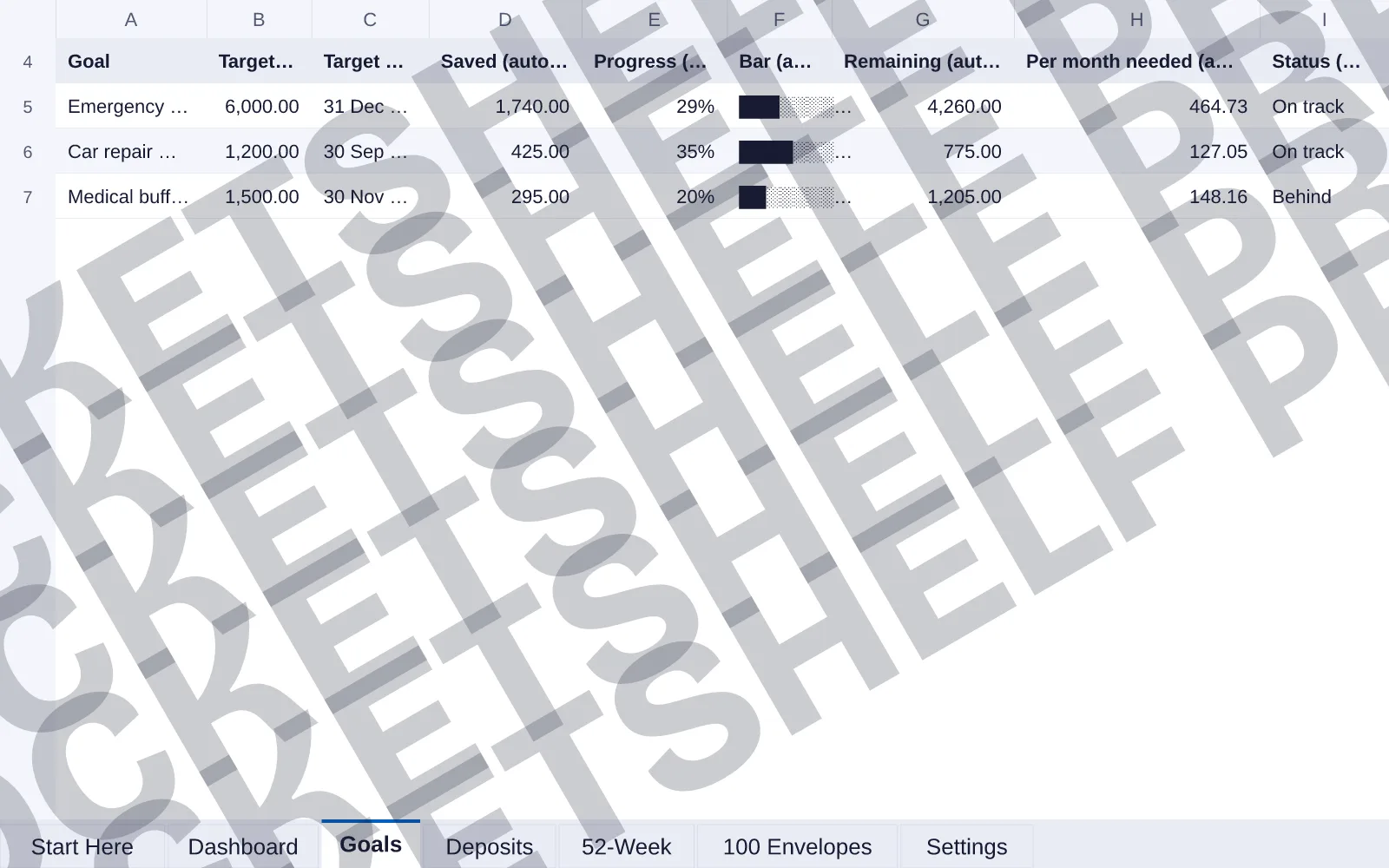
DashboardThe only tab you need to read each month. Four tiles show what is left to spend, what you spent, your income and your savings rate for the month you pick. Below them, a doughnut shows where the money went, a bar chart sets each category plan against what you actually spent, and a column chart compares income with spending month by month. View full size of Dashboard (opens the image in a new tab) SettingsThe one place you set things up: currency symbol and where it sits, start month and year, and your categories with a monthly amount for each. Change a category name here and every dropdown, table and chart follows. View full size of Settings (opens the image in a new tab) BillsRecurring bills with an amount and a due day from 1 to 28. Mark a bill Paid this month and the Status column reads Paid, or counts the days it is overdue. The status is always written out as a word, so it still reads on a black and white printout. View full size of Bills (opens the image in a new tab) Savings Goal Tracker: GoalsThe savings tracker lists up to eight goals, each with a target, a target date, what you have saved, what is left and the amount to put aside per month. The Status column says On track, Behind or Done in words. View full size of Savings Goal Tracker: Goals (opens the image in a new tab)
What is inside each workbook
All of them are Excel workbooks with a Start Here tab, a Dashboard with charts, a Settings tab and a blank copy of the same file. The differences are in the method and the tabs after the Dashboard.
- Single Income Budget Dashboard2 credits
One person with one main income who wants a monthly plan, a transaction log, bills and sinking funds.
- Size
- 7 tabs
- Files
- XLSX, CSV
- License
- personal
- Zero-Based Budget Dashboard2 credits
Assigning every dollar of income to a category before the month starts.
- Size
- 7 tabs
- Files
- XLSX, CSV
- License
- personal
A smaller income and a student-sized list of categories.
- Size
- 7 tabs
- Files
- XLSX, CSV
- License
- personal
- Savings Goal Tracker Spreadsheet2 credits
Saving toward up to eight goals, with two simple saving challenges.
- Size
- 7 tabs
- Files
- XLSX, CSV
- License
- commercial
| Item | Best for | Size | Files | License | Price |
|---|---|---|---|---|---|
| Single Income Budget Dashboard | One person with one main income who wants a monthly plan, a transaction log, bills and sinking funds. | 7 tabs | XLSX, CSV | personal | 2 credits |
| Zero-Based Budget Dashboard | Assigning every dollar of income to a category before the month starts. | 7 tabs | XLSX, CSV | personal | 2 credits |
| Student Budget Dashboard | A smaller income and a student-sized list of categories. | 7 tabs | XLSX, CSV | personal | Free |
| Savings Goal Tracker Spreadsheet | Saving toward up to eight goals, with two simple saving challenges. | 7 tabs | XLSX, CSV | commercial | 2 credits |
- Savings Goals Bundle6 credits
5 items. Bought one by one: 10 credits, so the kit saves 40%.
| Kit | Items | Kit price | Bought one by one |
|---|---|---|---|
| Savings Goals Bundle | 5 | 6 credits | 10 credits (kit saves 40%) |
Which budgeting method suits you
Most budget planners come down to a few methods, and the right one depends on how your money arrives.
- Category budget. Give each kind of spending a monthly amount, such as groceries or transport, and compare it with what you actually spend. It suits a steady income and is how the Single Income Budget Dashboard works.
- Zero-based budget. Assign every dollar of income to a category, including savings, so the plan adds up to what you earn. It suits people who notice that money left in the account tends to get spent.
- Goal-first saving. Decide what you are saving for, set a target and a date, and let the monthly amount follow from that. The Savings Goal Tracker is built around this.
None of these is better in general. If you are unsure, start with a category budget for two months. The Transactions log keeps your real spending, so you can switch method later without losing what you recorded.
Choosing categories you will actually use
The workbooks hold 12 categories, and most people need fewer. Start with the eight to ten places your money really goes, and put the rest into one Other category rather than inventing small ones you will never track.
Name categories after decisions, not shops. Groceries is a category you can plan; the name of one supermarket is not. Keep fixed costs such as rent apart from flexible ones such as eating out, because the flexible ones are where a plan usually moves. And give Savings its own category with its own monthly amount, so that saving is something you plan rather than whatever is left over.
Plan for costs that arrive once a year
Insurance premiums, gifts, car servicing and holidays do not show up every month, which is why they break a plan that only counts monthly bills. The Sinking Funds tab handles them. List each fund with its goal amount and a target date, record what you have set aside, and the tab works out the months left and how much to put away each month. Divide the cost by the months you have, and the one-off bill stops being a surprise.
What a spreadsheet will not do
A spreadsheet only knows what you type into it. It does not connect to your bank or pull in transactions for you, so you add each one yourself. That small effort is also the point for many people, because writing the number down makes you notice it. If you would rather have transactions imported for you, an app is a better fit.
What you get in exchange is a file that you own. It works offline, has no subscription, and nothing in it is password-locked. The numbers are for tracking your own money, not tax or financial advice.
A savings kit
If one savings tracker is not enough, a kit bundles several for one price. You keep everything in it.
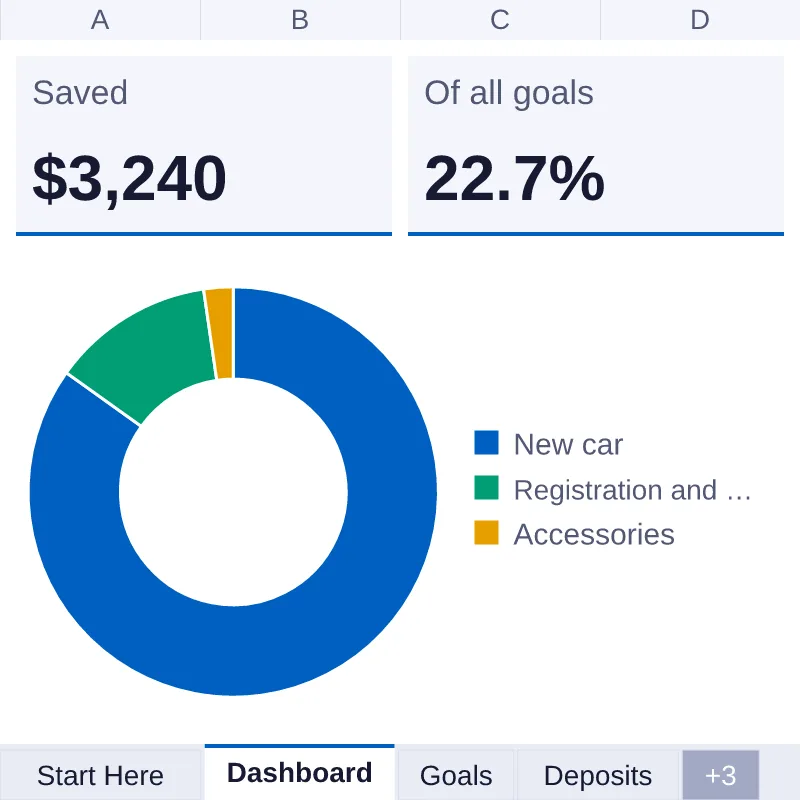
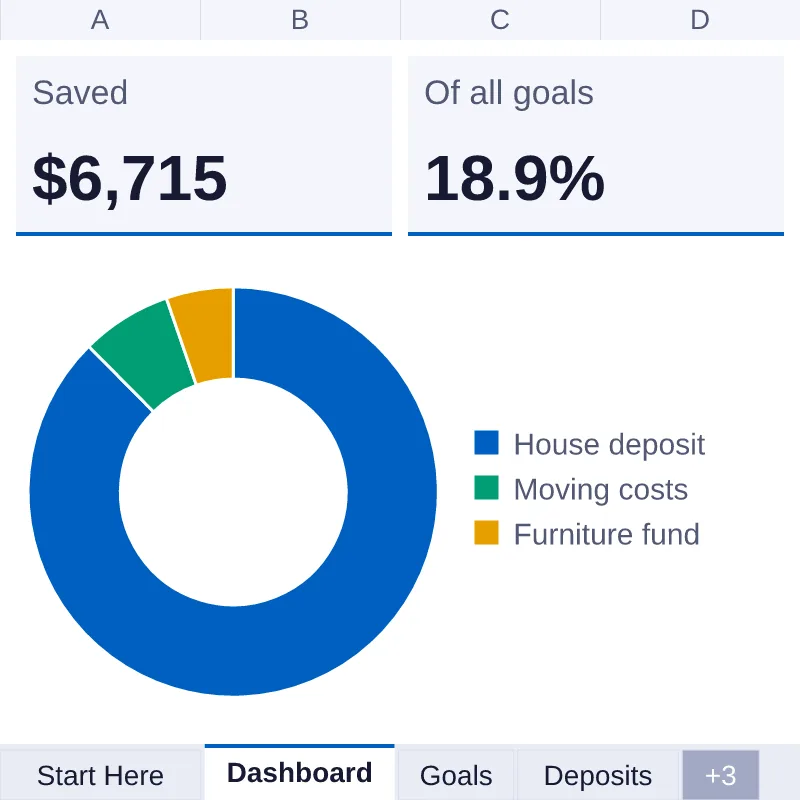
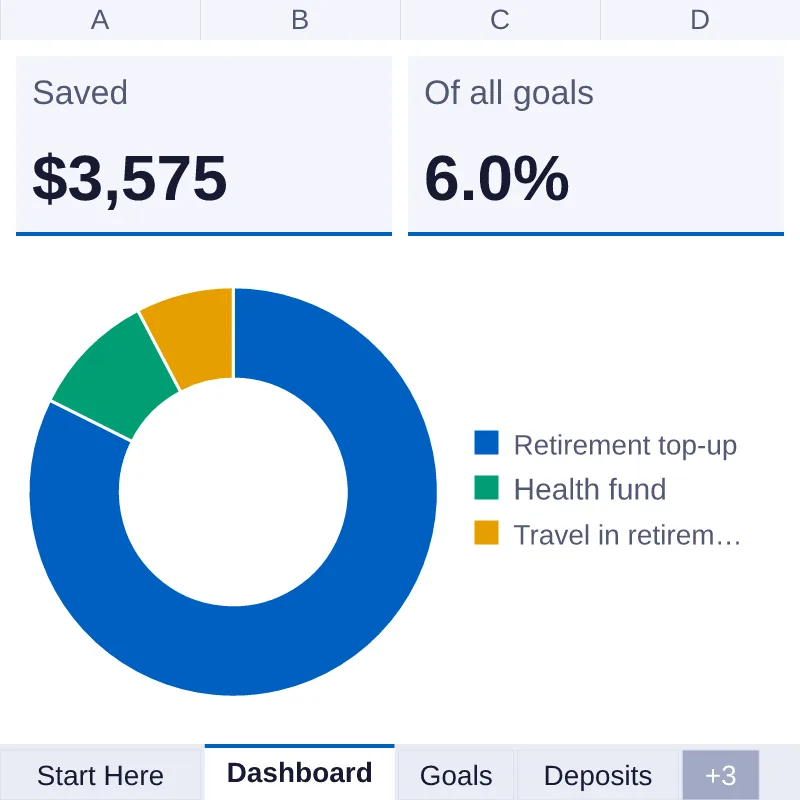
Savings Goals Bundle
5 items · 6 credits
Questions people ask
Which version of Excel do I need?
These are Excel workbooks (XLSX), made for Excel, and they use only functions found in Excel 2016 and later, so current desktop versions should open them without trouble. Other spreadsheet apps can show charts, colours and the protected Dashboard differently, so we do not list them as supported.
Can I change the categories, currency and month?
Yes. Settings holds your currency symbol, start month, year and 12 categories, each with a monthly amount. Nothing is password-locked. The Dashboard is protected only against accidental typing, and in Excel you can unprotect it from the Review tab.
What is the difference between the sample and blank files?
The sample file is filled with example transactions so you can see every tab working. The blank file has the same formulas, charts and layout with the example rows removed, ready for your own numbers. Each download also has a CSV copy of the sample log, which any spreadsheet or text editor can open; the workbook itself is made for Excel.
How do credits work?
Credits pay for items that are not free, and each item shows its price in credits. Credits come in packs, starting at 5 credits for $5, and are valid for 12 months from the day they were added. If you only want one item, you can buy it directly for $2 without buying a pack. Free items need no credits, only a free account: enter your email, choose a password and confirm the link we send you.
What if a file does not work?
If a file is broken or not what we described, open your library within 7 days of unlocking it and choose Request refund. The credits come back as store credit and the item is removed from your library. Free items are not refundable, because no credits were spent on them. Card refunds are handled by email at our discretion, and the full policy is on the refund page.
Can I use these for my own household only?
The Personal license covers you, your household and your own non-commercial use. Where an item is offered with a Commercial license, you get it when you unlock the item with credits, buy it directly or download it with All-Access Annual, and it also covers client work. Free items and All-Access Monthly downloads are always Personal. In every case you may not resell or share the file. Each item page and the license page spell out the details.
Ready to pick one?
Some are free. The rest are 2 credits each: buy one for $2, or get 5 credits for $5. Yours to keep.